
Virtual background in a video conference
Sometimes it is more comfortable to hide your background in a video conference. A virtual background does exactly that. boo.eu reassembles your video before it is sent. You are still visible in the foreground, but the background is replaced by an image or blurred.
Here you will find out how to show a virtual background in a video conference and what to bear in mind.
Setting up a virtual background
Open the toolbar

The toolbar appears at the bottom. If you cannot see it, click once in the window where your meeting is running.
Open more settings
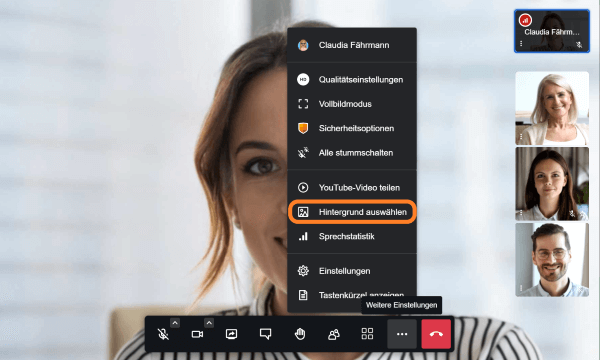
Open the "More settings" menu by clicking the three dots. The menu opens upwards.
Choose "Select background" and a new window opens.
Backgrounds for your meeting
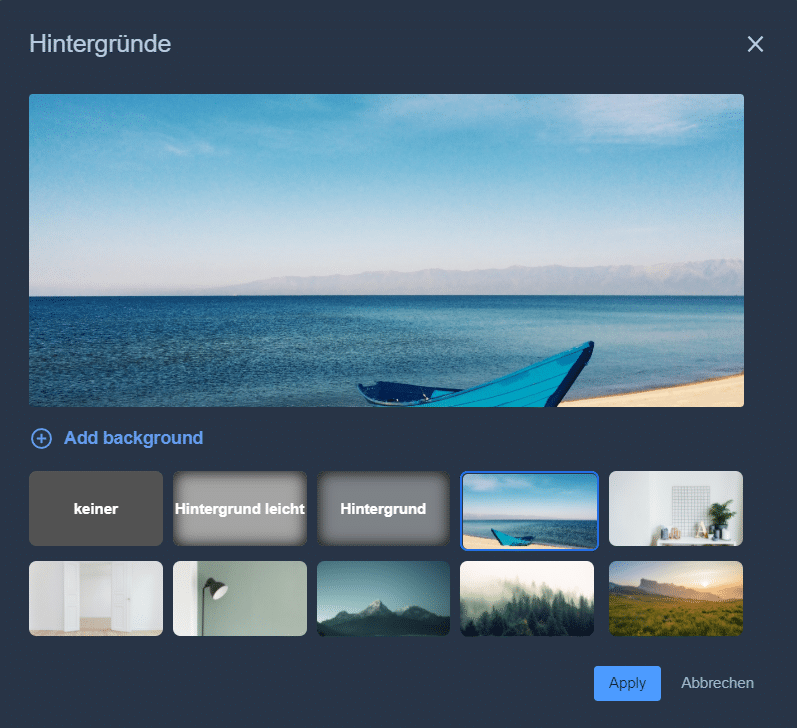
At the top of the pop-up window you see a preview of the current settings.
Below it you can add one of your own image files as a background. To do this, click "Add background".
Your image is then added to the available backgrounds.
Click a background to select it and then click "Apply". This takes you back to the meeting, and the people you are talking to see you in front of the background you chose.
Add your own background

Below the preview, click "Add background". Your file manager opens and you can select an image file. A landscape image works better than a portrait one.
Your image is then added to the available backgrounds.
Available backgrounds
No background

The "None" button switches the virtual background off again. If you do not apply a background, people see whatever is behind you.
Blurred background

Your real background can also be shown blurred or slightly blurred in the meeting.
With a slightly blurred background, writing (on book spines, for example) can no longer be read.
With a blurred background, individual files or books on the shelf can no longer be told apart.
Select a background

boo.eu provides a few background images. Click the image you want to use as your background.
The blue border shows which image is selected.
Remove a background

Move the mouse pointer over a background. The background image then becomes a little darker and gets a border. Backgrounds that you added also show a small X at the top right. Click the X to remove the background from the selection.
Screen as background

This is how you share your screen and appear in front of it. After choosing "Screen as background" you can again choose between entire screen, window and browser tab.
Your screen is then shown as your background. So you are sitting in front of your presentation.
Tips for your real background
Contrast
Stand out from your background. A white shirt does not show up well against a white wall. It also makes it harder to detect where the virtual background should go.
Strong contrast is good for a virtual background but can be unflattering in a meeting with your real background.
Lighting
Pay attention to the light. It helps to use an extra lamp that lights your face. The lamp should be about an arm's length away and should not cast harsh shadows on your face. The best position is slightly to the side of and a little above the camera.
Real background
Before you join a meeting, take a look around. What does the backdrop you are about to show look like?
Who is taking part in the meeting? And how much of your surroundings do you want to show? When working from home, less is often more.
Tips for a professional background
Video conferences are the setting for many professional contacts: job interviews, onboarding, project meetings, product presentations and user training. Every meeting is also an opportunity to present your company. A virtual background with a logo looks much more professional.
Where to place your logo
Your logo is clearly visible when you do not cover it. So the logo should not fill the whole background. Place it at the top left, for example, so that it takes up a third at most.
Where to place the speaker
As with the logo, the speaker's position can be planned too. This means positioning the camera. If it is further away, the background has more room. If the camera and the speaker move closer together, the speaker appears larger in the foreground.
People who use a background in video conferences are also interested in these pages
6 minutes