
Sharing your screen in a video conference (screen sharing)
With screen sharing (also called presenting your screen) you share your computer screen with the participants. They also see (and hear) your screen.
Share screen
Select this icon to show the other meeting participants your screen or a particular window.

After you click, a pop-up window opens. It has 3 tabs.
Do you also want to send the sound of the program or screen into the meeting? Then tick "Share audio".
Entire screen
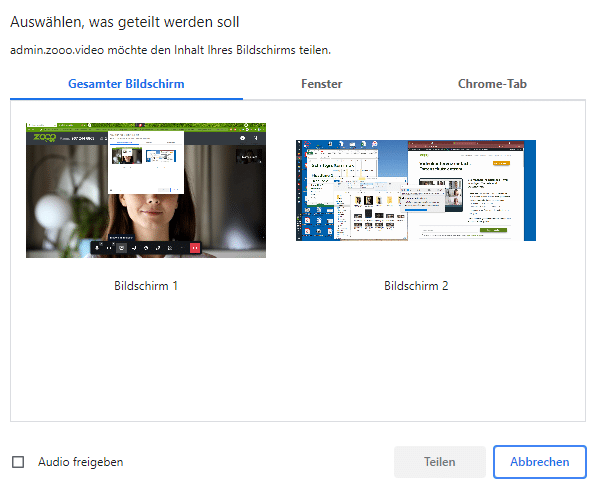
On the "Entire screen" tab you can select a screen and then click "Share".
You show everything that can be seen on that screen.
Application window
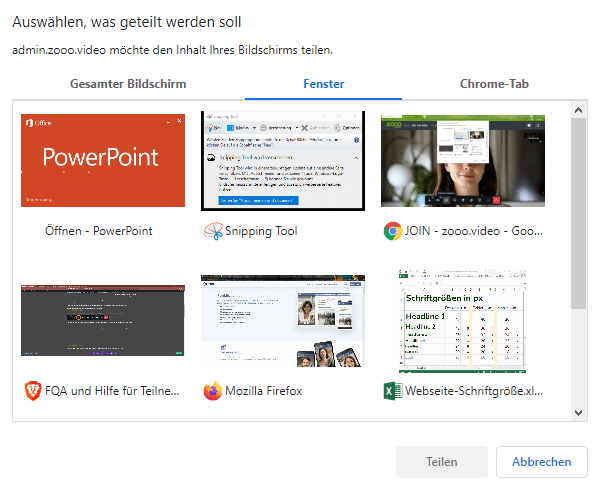
Switch to the "Window" tab if you only want to show a particular program. Then select the window and click "Share".
Browser tab
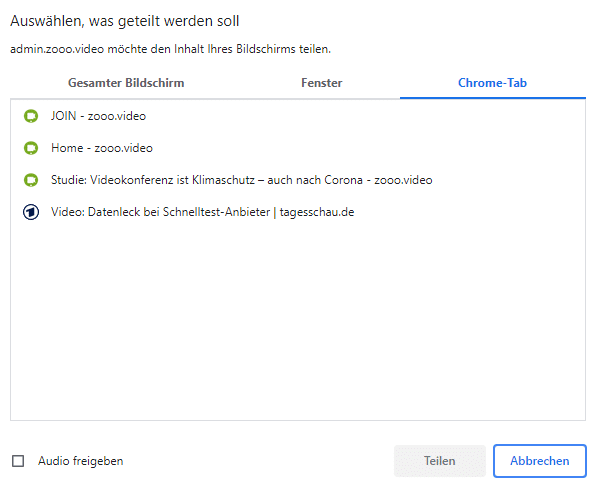
On the third tab, "Chrome tab" / "Safari tab" etc., you share one tab of your browser. One click on "Share" and you browse together.
Show your screen and send video
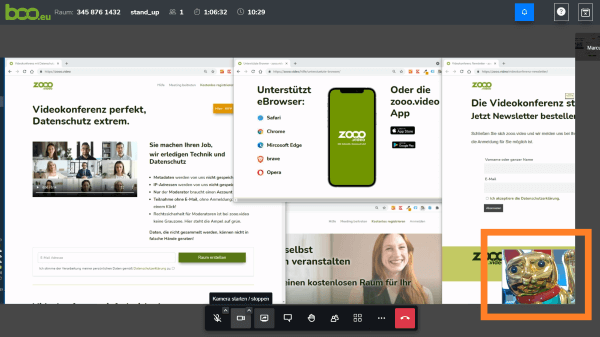
Are you sharing your screen? Then your video is not sent for the time being. However, one click on the camera icon in the toolbar switches on your camera in addition to the screen share.
The other participants then see your screen and your video at the bottom right.
Please note that with this combination your virtual background is not shown.
Switch between screen and video
You can use your computer keyboard to switch between sharing your screen and sending your video.
Press the [D] key to stop sharing your screen and switch on your camera.
If your video is being sent and you press the [D] key, the pop-up opens. You now have to choose what you want to share (entire screen, a window or a browser tab).
Especially in longer presentations, it can be more engaging for the audience if they see the speaker full size from time to time.
Presenters also find these articles helpful