
Features in a boo.eu meeting
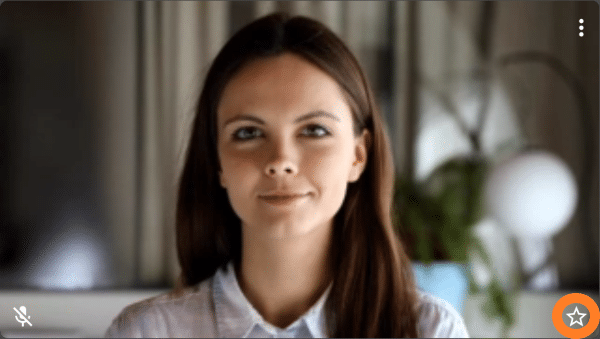
These features help you take part in this meeting successfully.
Only you can switch on your microphone and camera.
The meeting's moderators can only switch them off.
You recognise moderators by the star at the bottom right of their video tile.
Important: microphone and camera
When you enter the room, the toolbar appears at the bottom. It shows a microphone icon, a camera icon and other icons.

The microphone icon shows whether you can be heard:
If the microphone is not crossed out, you can be heard.
If the microphone is crossed out, it is not on.
Switch the microphone on:
- Click the microphone icon
- Press [M] on your computer keyboard
- Press and hold the space bar
Switch the microphone off:
- Click the microphone icon
- Press [M] on your computer keyboard
- Briefly press the space bar
The camera icon shows whether you can be seen:
The camera is not crossed out when you can be seen.

The camera is crossed out when it is not on.
Switch the camera on or off:
- Click the camera icon
- Press [V] on your computer keyboard ("V" for video)
Can you be heard and seen now? Very good! If not, you will find more help here: Solutions for audio and video problems in video conferences.
The toolbar
You will find the most frequently used features in the toolbar. You already know the toolbar from switching on your microphone.
If you cannot see the toolbar, move the mouse into the window.
Share screen
Select this icon to show the other meeting participants your screen or a particular window.

For more information and detailed instructions on features such as sharing your screen and video, see: Sharing your screen in a video conference (screen sharing)
Chat – exchange text messages

This opens an area for exchanging text messages. Detailed information on the chat is here.
Raise your hand / ask to speak

After you click the hand icon, everyone sees a small raised hand in your video tile. The moderator notices that you have something to say. Raising hands is also used for votes.
Show the participant list

You see a list of the participants. The icons after each name show whether that participant is sending audio and/or video.
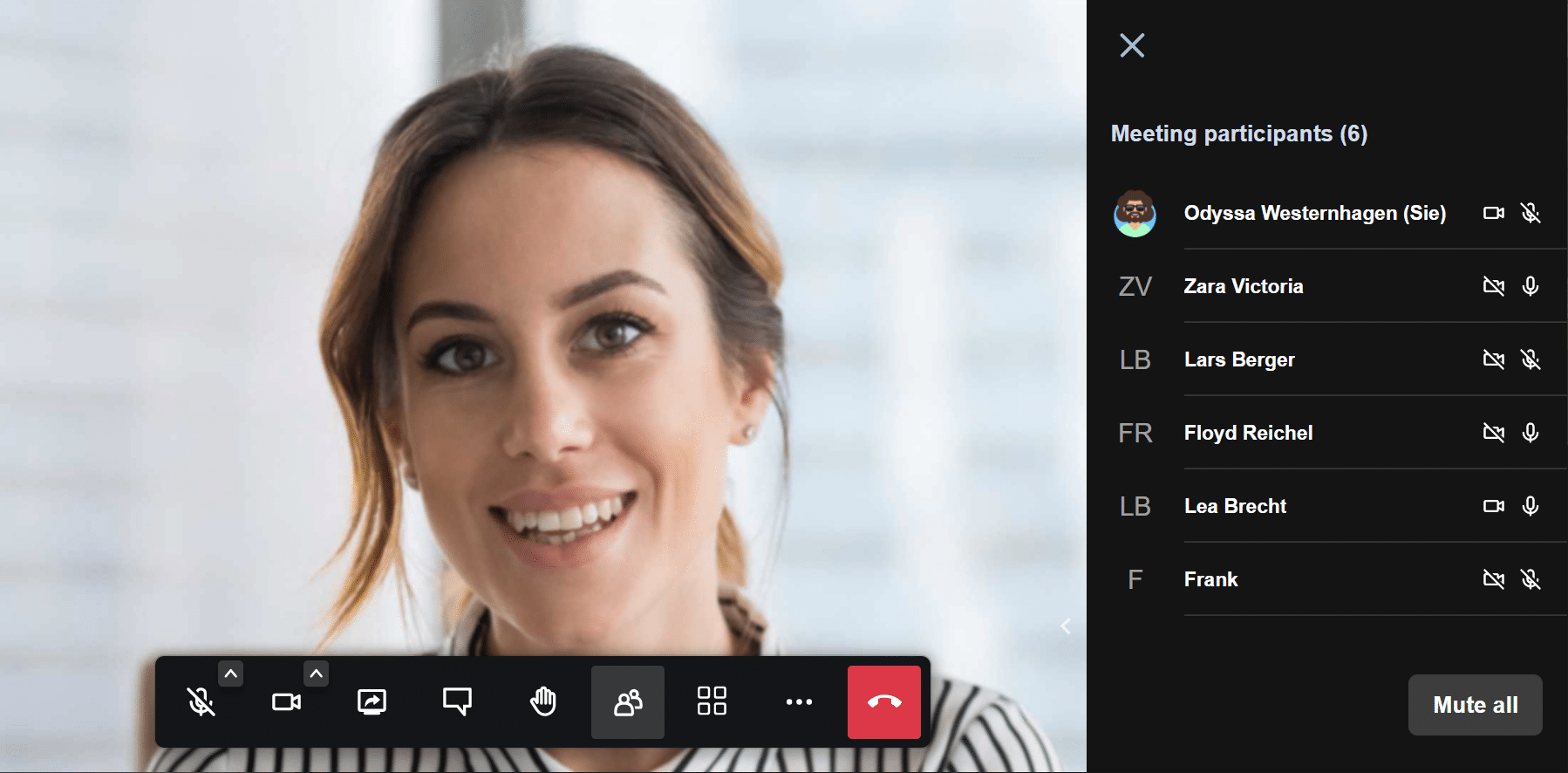
Move the mouse over a participant's name. 3 dots now appear for more options.
Here you can send the participant a text message that stays hidden from the other participants.
You can also turn down the participant's volume. This is extremely useful when colleagues speak at different volumes.
If you are in the same room as another participant – so you hear your colleague live first and then again, slightly delayed, through the video conference – individual volume is the answer.
Simply turn that participant's volume down to the minimum. You still hear your colleague live, but "their echo" is gone.
Speaker view
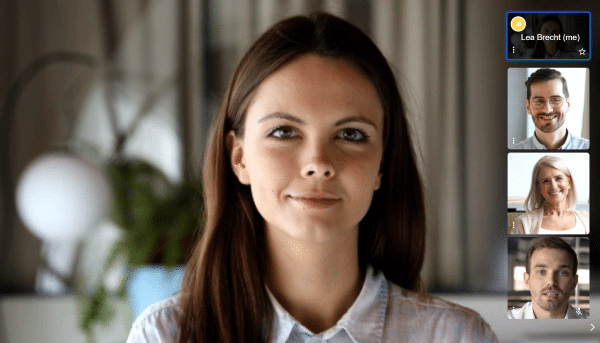
In speaker view one participant's picture is shown large. The picture can show:
- The speaker's video
- The shared screen
- A grey tile with a name
When another participant speaks, they are shown instead. So the person shown may change again and again.
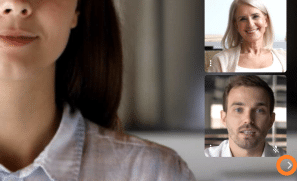
Some videos of the other people in the conversation are shown along the edge. You can hide these tiles by clicking the small arrow below them.
Click the arrow again to show them again.
The [F] key on your keyboard also shows or hides the strip.
Tile view
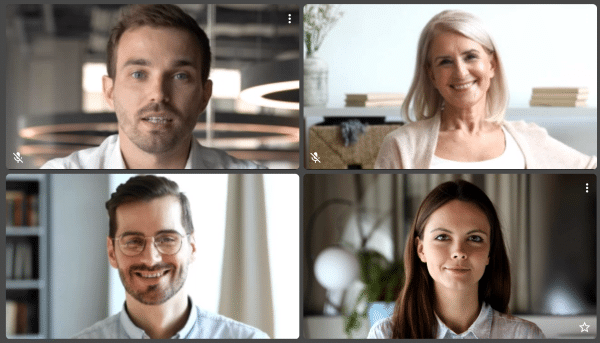
In this view you see the videos of everyone in the conversation. This works well in smaller meetings or in conversations where the speaker changes often.
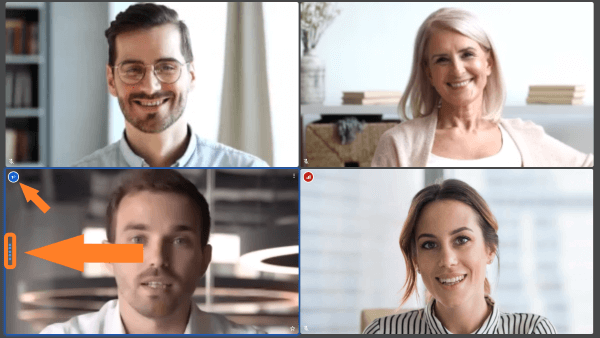
The video conference shows who is speaking. A few dots appear on the left edge of the tile. The main speaker's video tile also gets a coloured frame. And a small megaphone icon appears at the top left of the tile.
Tile view and speaker view

Here you can switch between the two views.
More settings

Click the three dots for "More settings" and a pop-up menu appears.
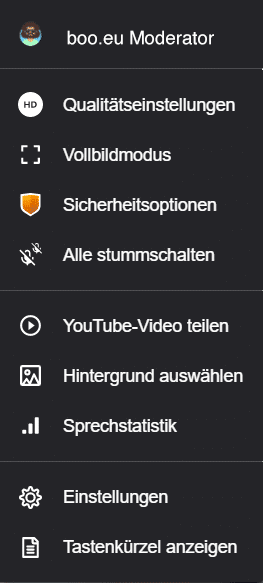
Here you can make the following settings
- Set the quality of the video you send
- Hold the video conference in full-screen mode
- Security options
- Share a YouTube video
- Select a background
- Show speaker stats
- Show keyboard shortcuts
Quality settings
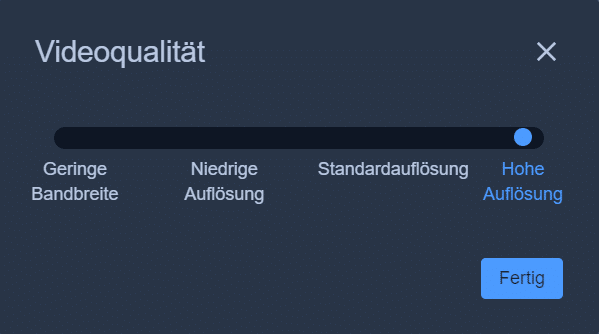
Under "Quality settings" you can set the quality of the video you send. This can help if the quality of your internet connection varies.
Full screen for the video conference
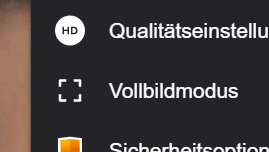
Switch to full-screen mode! Your browser's frame is hidden and the boo.eu bar disappears. The conference now fills the entire screen. That way you use your screen only for what matters: the people you are talking to.
To leave full-screen mode, press [Esc] or [S] on your keyboard.
Show a YouTube video
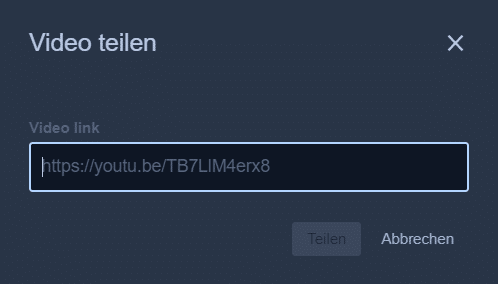
In a boo.eu meeting you can also show videos stored on YouTube.
Under "More settings", go to "Share a YouTube video". Enter the video's URL there and click "Share". In the meeting you can pause the video, play it again, jump to a particular point and set the volume.
You can also comment on the video. If your microphone is on, both you and the sound of the YouTube video can be heard.
Depending on whether your last click was in the video area or in the toolbar area, the space bar does something different:
- If the focus is on the video area, the space bar pauses the video and starts it again.
- If the toolbar area is active, pressing and holding the space bar opens your microphone. When you let go of the space bar, your microphone is muted again.
Select a background
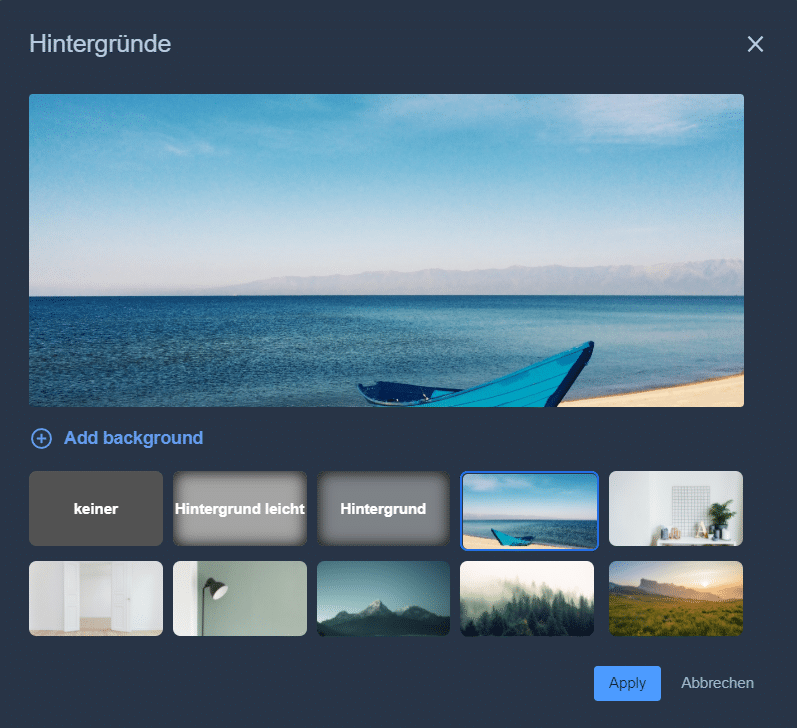
Sometimes it is more comfortable to hide your background in a meeting. Under "More settings", go to "Select background".
At the top of the pop-up window you see a preview of the current settings.
Below it you can add one of your own image files as a background. To do this, click "Add background".
Your image is then added to the available backgrounds.
Click a background to select it and then click "Apply". This takes you back to the meeting, and the people you are talking to see you in front of the background you chose. More about video conference backgrounds here.
Show speaker stats
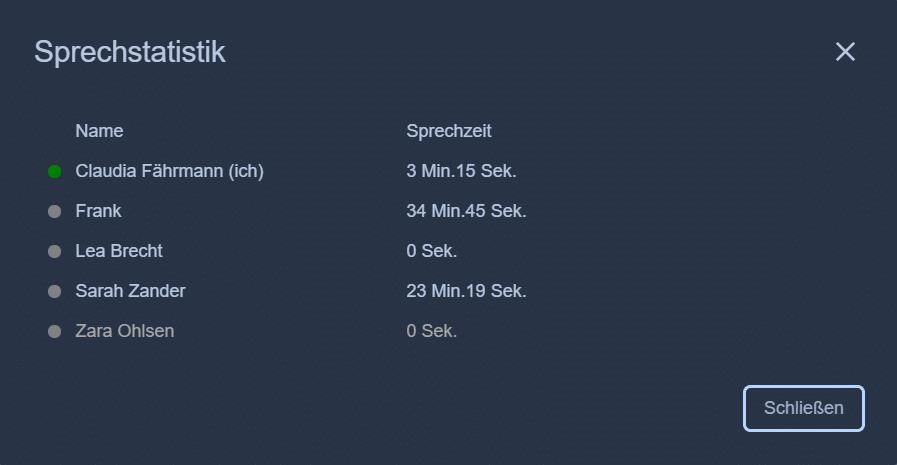
Speaker stats show all participants in the meeting.
The participants' speaking time is shown in the 2nd column.
Show keyboard shortcuts
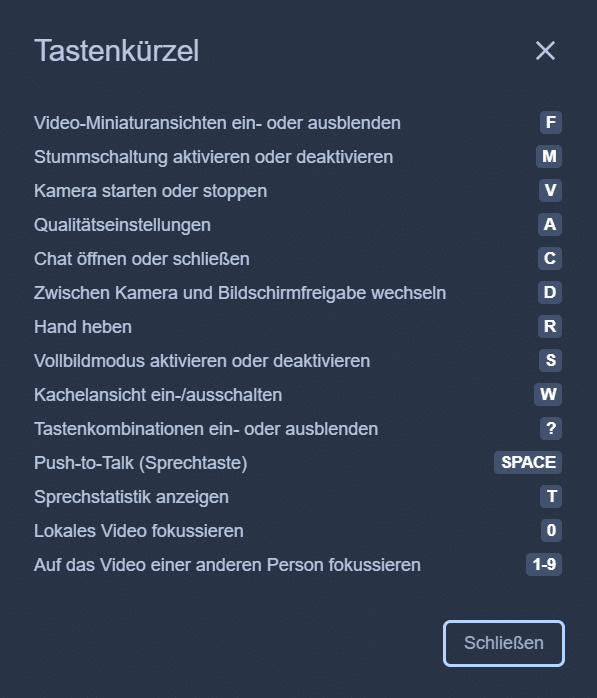
You can use these features from your keyboard:
- Show or hide video thumbnails [F]
- Mute or unmute [M]
- Start or stop camera [V]
- Quality settings [A]
- Open or close chat [C]
- Switch between camera and screen sharing [D]
- Raise hand [R]
- Switch full-screen mode on or off [S]
- Switch tile view on/off [W]
- Show or hide keyboard shortcuts [?]
- Push to talk [Space]
Check your video before sending it
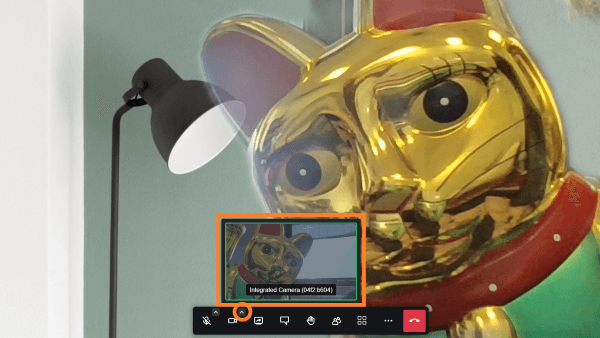
You can check your video before you send it to the video conference participants!
Click the small arrow above the camera icon in the toolbar.
A small window opens showing the picture from your camera. This lets you check whether you can be seen clearly and the framing is right.
Even more tricks, tips and offers in the newsletter
Receive useful information on video conferencing in general and boo.eu in particular on a regular basis.
Subscribe to the newsletter