
These features are available to moderators

You have features available to organise the meeting. They include muting one or more microphones and switching off cameras.
You and the other participants recognise a moderator by the star at the bottom right of the video tile.
Important: Participants can only enter the room when a moderator is present
At least one moderator must be in the room before participants can join.
If all moderators have left the room, the participants stay in the meeting. However, they cannot join again.
Overview of the features for moderators
Audio
- Mute participants
- Only one participant can be heard
- Only I can be heard: mute everyone
Video
- Switch off a participant's video
- Only one camera is sending
Security
- Remove participants from the conference
- Grant moderator rights
- Enable the lobby
- End-to-end encryption
How to use the moderator features to manage participants
1. Click the three dots in the participant's video tile.
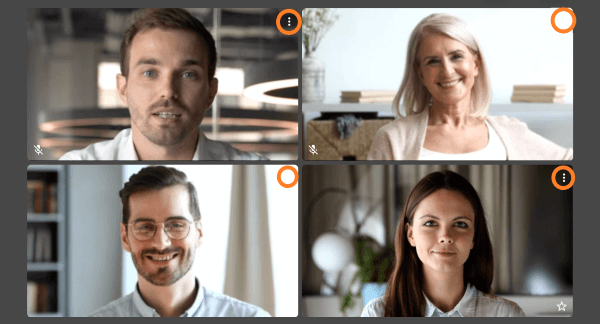
If you have chosen tile view, where all participants' videos are the same size, the three dots are at the top right of each video tile.

When speaker view is switched on, the participants' videos can appear along the right edge of the screen.
The three dots are then at the bottom left of each video tile.
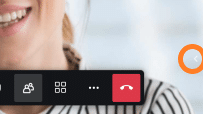
To show the participants' video thumbnails (in speaker view), click the small arrow at the bottom right. Or press [F] on your keyboard.
2. Choose one of the following features
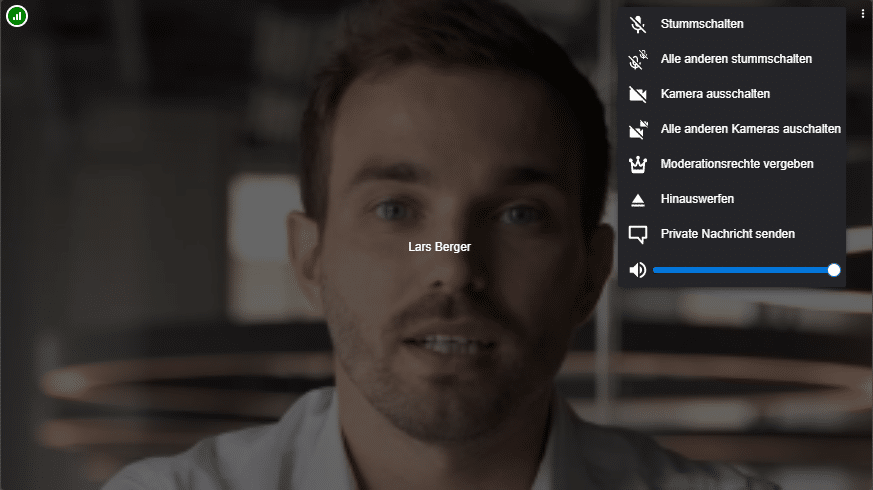
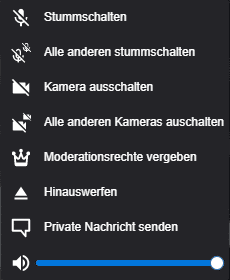
After you click the three dots in the video tile, a menu opens. Now you can choose the feature you want.
Muting a participant
This switches off the microphone of this participant. That can be useful when this one participant is somewhere noisy and is disturbing the meeting.
A microphone or camera can only be switched on by the participant themselves.
Mute all other participants
This switches off all other microphones. Only this participant can still be heard.
During a talk it is important that no participant disturbs it with noise.
Switch off camera
This switches off the selected participant's camera.
Only one camera on / switch off all other cameras
Switch off all other cameras. Only the participant whose tile you opened the menu from can be seen.
Remove participant
This removes the participant from your meeting. They can then neither be seen nor heard. This participant also can no longer see or hear the meeting.
You can stop them from joining again by enabling the lobby.
Grant moderator rights
You can grant moderator rights to other participants. That participant can then use the features described here.
In large meetings several moderators can share the work of running the meeting. One moderator answers the chat while another handles requests to join in the lobby.
If you have to leave a meeting early, grant moderator rights to other participants.
How to use the moderator features from the toolbar
Only you can be heard: mute everyone

Open the participant list from the toolbar.
If you cannot see the toolbar, move the mouse into the browser window.
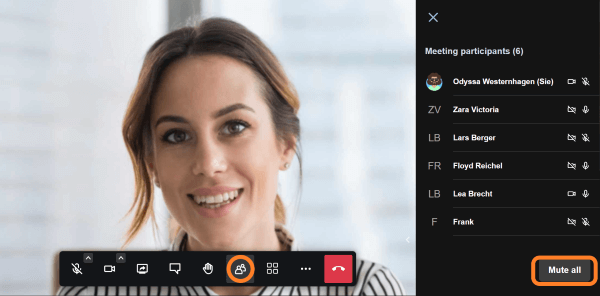
After you click the participants icon, the participant list opens.
At the bottom of the list there is a "Mute all" button.
Clicking this button mutes all participants. You can still be heard.
Lobby enabled: knock before entering
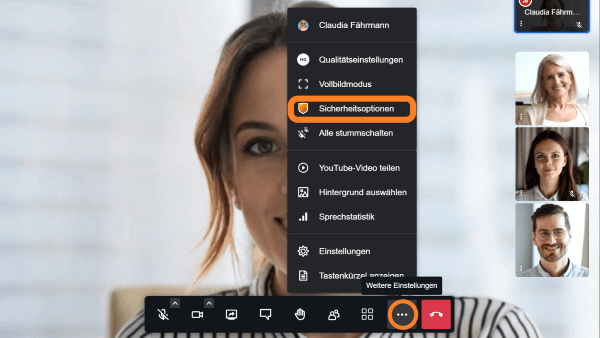
In the toolbar, click the three dots for "More settings".
A pop-up menu appears.
Choose "Security options".
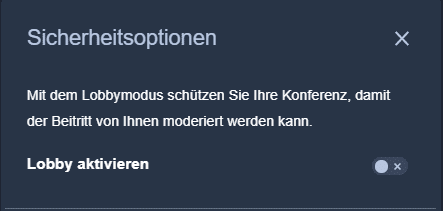
A window with the security options opens.
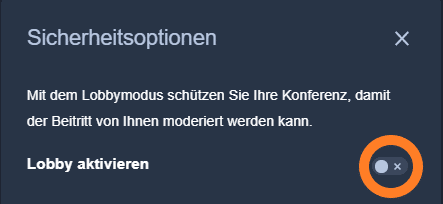
Lobby mode makes you the doorkeeper.
The room ID and passcode are no longer enough to get into the room. New participants who know the room ID and passcode knock first. They ask to join.
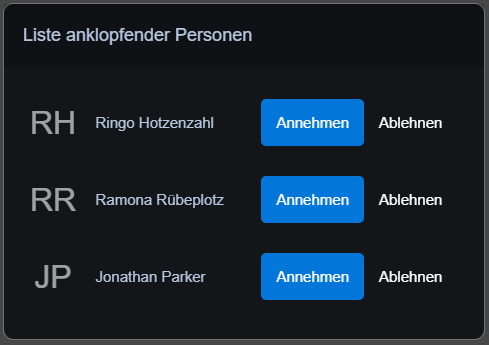
The moderators see the request on their screen and can respond to it. Accepted participants enter the meeting. Rejected participants see a notice: "Your request to join was declined."
End-to-end encryption
In the toolbar, click the three dots for "More settings".
A pop-up menu appears.
Choose "Security options".
A window with the security options opens.
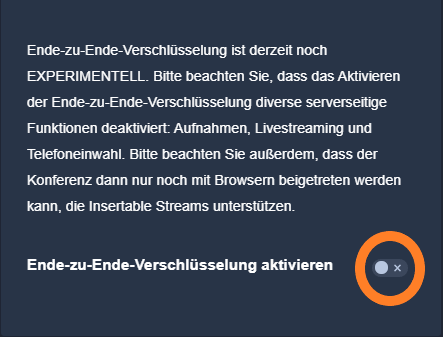
End-to-end encryption (also called "E2EE") prevents the provider from accessing the content.
For meetings in which everyone takes part with a suitable browser (in German), we offer end-to-end encryption as an experimental feature to try out.
In an encrypted meeting, the participants' computers need many times more processing power to encrypt their own video and decrypt the incoming data. This can make your computer's fan run a little louder.
The boo.eu app does not currently support taking part in encrypted meetings.
Features for everyone: participants and moderators
All participants can: