
Chat in a video conference
The chat is the perfect addition to your meeting.
- Text messages are almost silent and do not disturb the video conference. That makes the chat particularly useful when many participants each make a short contribution – for example in reply to an icebreaker question such as "Where are you joining from?".
- Text messages are clickable. If you want to share a link, the chat is the best way to do it.
- A text message can also be sent to just one participant. Is there an old acquaintance among the participants? Use the private chat to say hello.

The chat is not saved. If you need information from the chat after the meeting, save it before the video conference ends.
Receiving chat messages
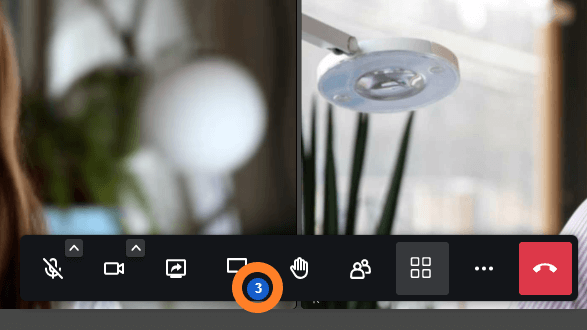
When you have received messages, you hear a sound ("whoosh") and the icon in the toolbar shows the number of unread messages.
Click the chat icon (speech bubble) to read the messages.
Sending chat messages to everyone

Open the toolbar and click the speech bubble.
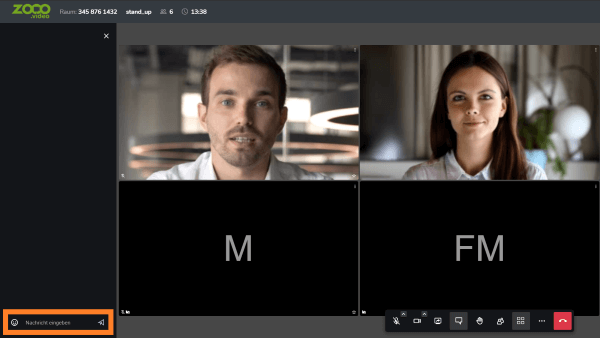
An area for exchanging text messages opens. You can read and write messages here.
To write a message, first click the words "Type a message" in the text box. The border of the text box changes colour. Then you can type.
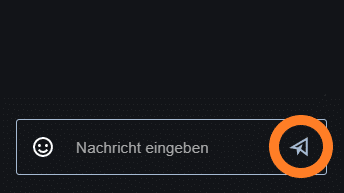
To send the message, press the Enter key or click the send button.
To start a new line within a chat message (line break), press the Shift key and the Enter key at the same time (Shift + Enter).
Using emojis in the chat
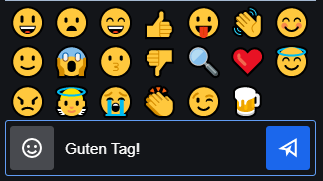
You can add emojis to your message. Click the icon in the text box to open the emoji picker. Then click the emoji you want to use.
If you do not want to use an emoji, click the icon in the text box again. The picker is hidden again.
Private chat: send messages to just one participant

If you want to write to just one participant, first find that participant's tile. This is often easier when the meeting's tile view is switched on.
1. Click the three dots in the participant's video tile.
If you have chosen tile view, where all participants' videos are the same size, the three dots are at the top right of each video tile.

When speaker view is switched on, the participants' videos can appear along the right edge of the screen.
The three dots are then at the bottom left of each video tile.
2. Click "Send private message".
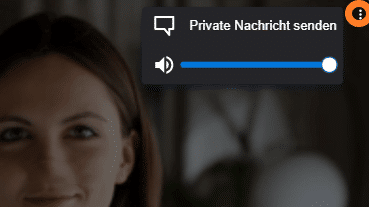
Then select "Send private message".
A clear notice appears in the chat window that messages are being sent to one recipient only.
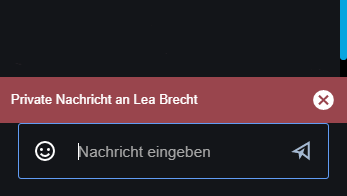
As long as the notice is visible, any further messages also go only to the named recipient.
To write to all participants, close the notice by clicking the X.